
How Break Reminders Help Parents Manage Kids' Screen Time
On this page

An 8-year-old sits down at the MacBook to do homework. Thirty minutes of math turns into an hour of math plus "just one video" plus a rabbit hole of Minecraft tutorials. By the time a parent checks in, the kid has been glued to the screen for two and a half hours straight -- no breaks, no blinking, no moving. Eyes glassy, neck stiff, but none of it registered.
This is the reality in most households where kids use laptops for school. The problem isn't that kids use screens -- schools practically require it now. The problem is that once they're on, they don't come up for air. They forget to blink, forget to move, and by bedtime their eyes are red and their mood is terrible.
Most parents get tired of being the one who has to walk over every 20 minutes and say "look away from the screen." There has to be something that does the reminding instead.
Why Kids Don't Take Breaks on Their Own
Adults at least have the self-awareness to notice when their eyes feel like sandpaper. Kids don't. Here's why:
They're wired to hyperfocus: When a kid is deep in a game or a video, the outside world disappears. Their brain literally filters out discomfort signals because the screen content is more interesting than the slight burn behind their eyes.
They don't connect cause and effect yet: A 7-year-old doesn't think "my headache at dinner is because I didn't take breaks this afternoon." They just know they feel bad and get cranky about it.
Timers feel like punishment: Hand a kid a kitchen timer and say "you have 30 minutes," and all they hear is a countdown to losing something they enjoy. That creates resistance, not healthy habits.
The trick is making breaks feel automatic and normal -- not like a punishment.
What Actually Works: Automatic Break Reminders
Instead of setting arbitrary screen time limits (which just lead to arguments), a better approach is setting up break reminders on the Mac itself.
The idea is simple. The computer tells the kid to take a break. Not a parent. Not a timer on someone's phone. The actual machine they're using.
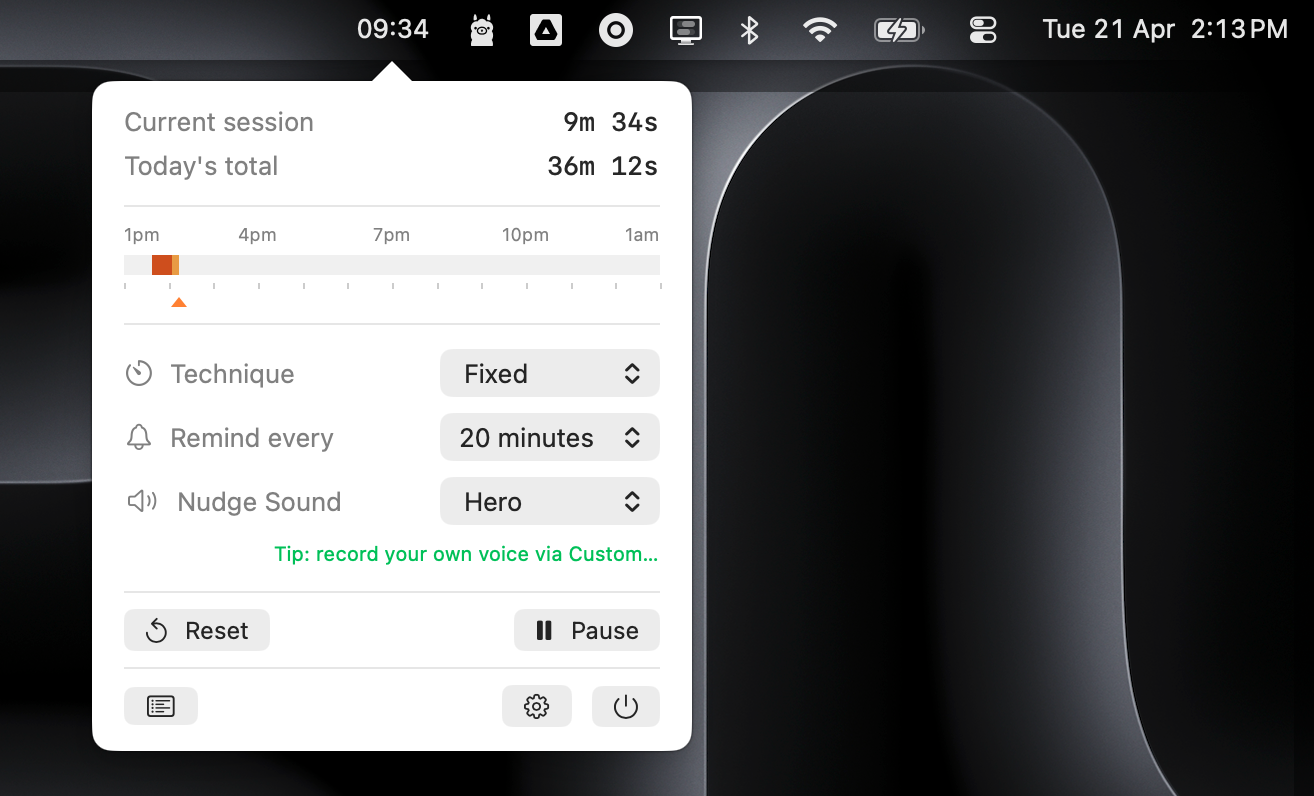
Limited Session sits in the Mac's menu bar and does exactly this. Set a reminder interval -- say, every 20 or 30 minutes -- and when the time is up, a full-screen overlay pops up telling them it's time to move.
Here's why this works better than parental policing:
- It's consistent: It reminds them every single time, not just when a parent happens to notice they've been on for a while.
- It's not a person: When the computer says "time to move," it's weirdly less annoying to a kid than when a parent says it. Third-party authority effect.
- It's visual: The overlay takes over the screen. They can't just ignore a notification badge in the corner. They have to acknowledge it.
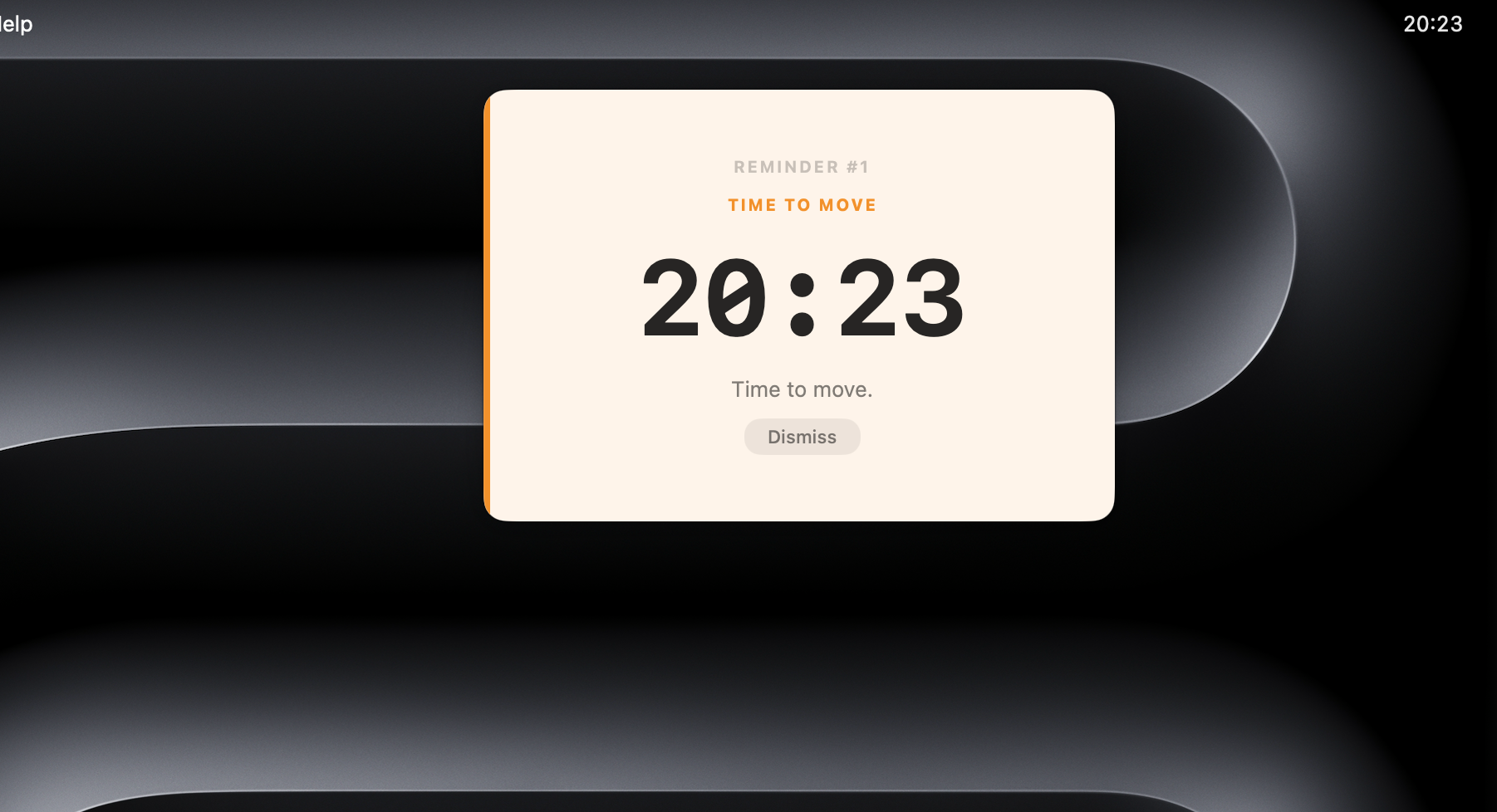
- It tracks the day: The menu bar shows their current session time. Older kids actually start paying attention to it and self-regulate.
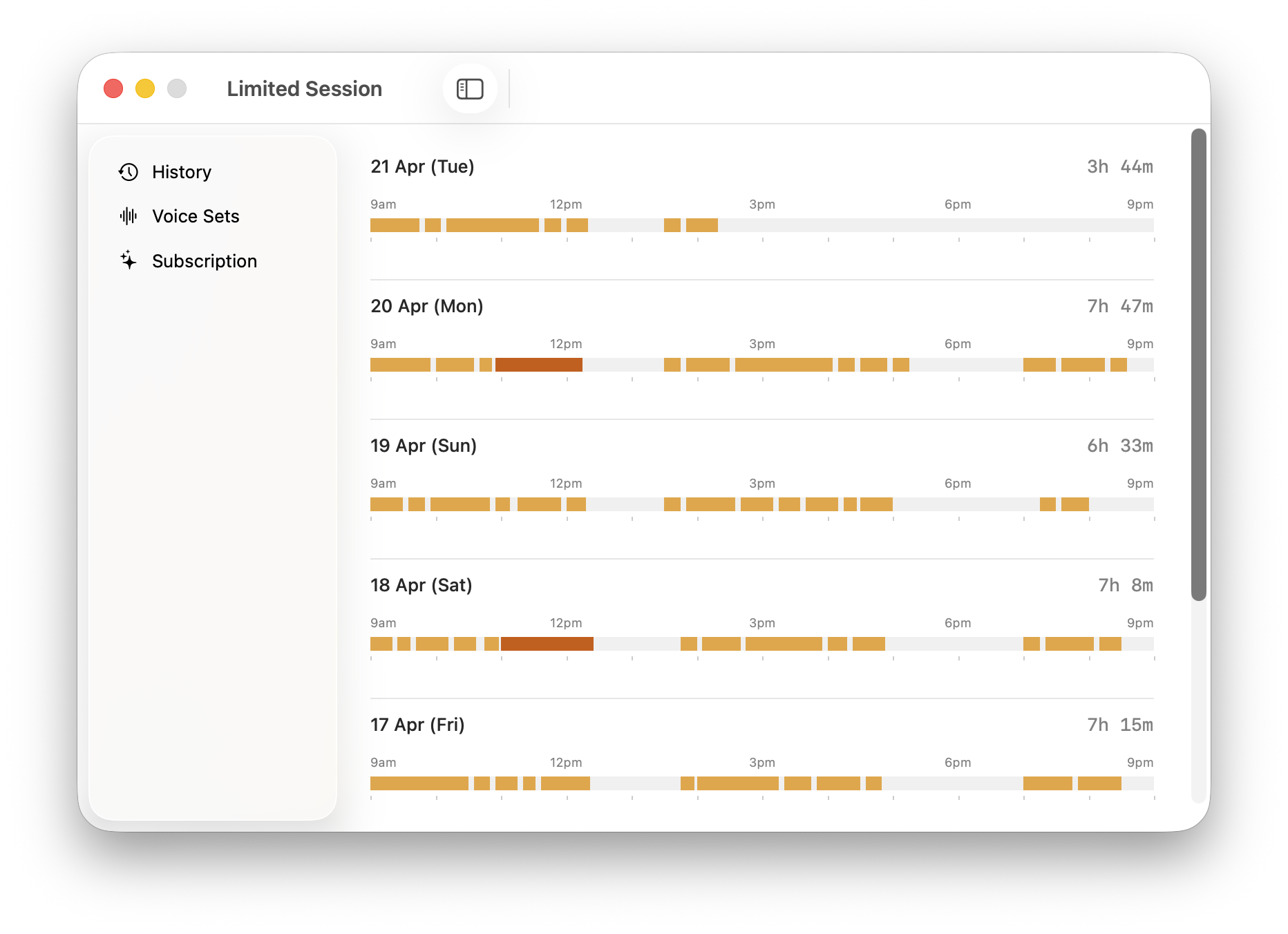
- It keeps a history: The History view shows a daily timeline of screen activity — when sessions happened, how long each one lasted, and the total for the day. Parents can glance at the week without hovering.
Setting It Up for a Kid
Getting this running takes about 30 seconds:
- Install Limited Session on the kid's Mac — a 7-day free trial, then pick a monthly, yearly, or one-time lifetime plan, whichever fits the household.
- Set the reminder interval: For younger kids (5–8), every 20 minutes works well. For older kids, 30 minutes is fine. This matches the 20-20-20 rule that eye doctors recommend.
- Turn on auto-start at login: This way it runs every time they open the laptop. No setup, no remembering.
- Show them what the notification looks like: Let them see the "Time to Move" screen before it surprises them mid-game. Kids handle things better when they know what to expect.
That's it. Break reminders start on the first launch and keep running quietly in the background until the laptop closes.
How to Frame Breaks for Kids
Framing matters. Instead of "I'm limiting your screen time," something like this works better:
The computer is going to remind you to rest your eyes and stretch, kind of like how athletes take water breaks. It doesn't mean you're in trouble or you have to stop. Just look away from the screen, blink a few times, maybe walk to the window. Then you can go right back to what you were doing.
This reframes breaks as something athletes and healthy people do, not as a punishment. Kids buy into that way more easily.
Some things they can do during a 60-second break:
- Look out the window at something far away
- Get a glass of water
- Do 10 jumping jacks
- Pet the dog
- Just close their eyes and count to 20
The key is that the break is short and they get to go back. Once kids realize the break isn't taking away their screen time -- it's just a quick pause -- the resistance usually fades within a few days.
The Science Behind It
For parents who need to convince a skeptical partner or co-parent, here's the quick pitch:
The 20-20-20 rule: Backed by optometrists — every 20 minutes, look at something 20 feet away for 20 seconds. It reduces digital eye strain by letting the focusing muscles in the eyes relax. Kids' eyes are still developing, which makes this even more important.
Extended near-focus work increases myopia risk: Multiple studies have linked prolonged screen time with higher rates of nearsightedness in children. Regular breaks that shift focus to distant objects help counteract this.
Movement breaks improve attention: This one's a bonus. Research shows that short physical breaks during learning tasks actually improve focus and retention in kids. So those breaks aren't just protecting their eyes — they're making the screen time more productive.
What About Screen Time Limits?
Many parents have stopped fighting the "how many hours" battle entirely. Instead, the focus shifts to how kids use screens:
- Are they taking breaks? (The app handles this.)
- Are they blinking enough? (Breaks help with this too.)
- Are they sitting at a reasonable distance? (Arm's length rule.)
- Are they doing other things during the day? (Outside time, reading, playing.)
If breaks are happening consistently, a lot of the screen time damage gets mitigated on its own.
The problem was never really the total hours — it was the unbroken, zombie-mode staring.
The Bar Isn't Perfection
No family has a perfectly optimized screen time schedule. Kids are going to binge a movie on Saturday mornings. That's fine.
But having automatic break reminders running in the background genuinely reduces the evening meltdowns, the "my eyes hurt" complaints, and the amount of nagging parents do about screens. The goal was never perfection. It was just: don't do nothing.
If a kid uses a Mac for anything -- homework, games, YouTube, whatever -- setting up break reminders is one of the easiest wins a parent will find. It takes 30 seconds, it's free, and it works while nobody's watching.
The kid's eyes will thank whoever sets it up — and the evenings get easier, too.
Related Articles
Screen Time and Children's Vision — What Parents Should Know
How prolonged screen use affects developing eyes and what practical steps reduce the risks.
Computer Vision Syndrome — The Early Signs Every Desk Worker Misses
The first symptoms of CVS rarely look like eye problems. The headache, the brain fog, the urge to scroll your phone after work — those are early signs, not separate issues.
The 20-20-20 Rule Explained — And Why Most People Do It Wrong
What the 20-20-20 rule actually requires, where most people cut corners, and why the timing matters more than it sounds.
How Long Can Developers Actually Code Before Output Drops?
Real research on cognitive fatigue, peak coding hours, and why most developers ship their best work in 4-6 focused hours — not 10+.